
ThinkGeo MCP Server

Artificial intelligence is quickly becoming a core part of software development workflows. With access to tools like ChatGPT, Cursor, Claude Code and Codex, developers are increasingly integrating AI into their development environments.
To make this integration easier, a new standard has emerged: the Model Context Protocol (MCP). With the release of the ThinkGeo MCP Server, developers can now connect AI assistants directly to ThinkGeo’s documentation, community forums and sample codebases.
In this post, we’ll explore what the ThinkGeo MCP Server is, how it works, and how it can help developers build smarter GIS applications.
How Does It Work?
The new MCP server indexes over 12,700 documents across the full ThinkGeo ecosystem:
Product Documentation - API guides, quick starts, deployment guides, and changelogs gathered from docs.thinkgeo.com.
Community Articles - Community-contributed articles and Q&A from community.thinkgeo.com.
WPF How Do I - Complete C# WPF code samples (HowDoI.sln)
WinForms How Do I - Complete C# WinForms code samples (HowDoI.sln)
Blazor How Do I - Blazor code samples (ThinkGeo.UI.Blazor.HowDoI.sln)
GIS Server How Do I - GIS Server code samples (ThinkGeo.GisServer.Samples.sln)
MAUI How Do I - .NET MAUI mobile code samples (HowDoISample.sln)
Your AI client connects to the MCP server to extend its knowledge and training on ThinkGeo topics. This results in much more accurate and productive responses in AI queries relating to ThinkGeo.
How Do I Access the ThinkGeo MCP Server?
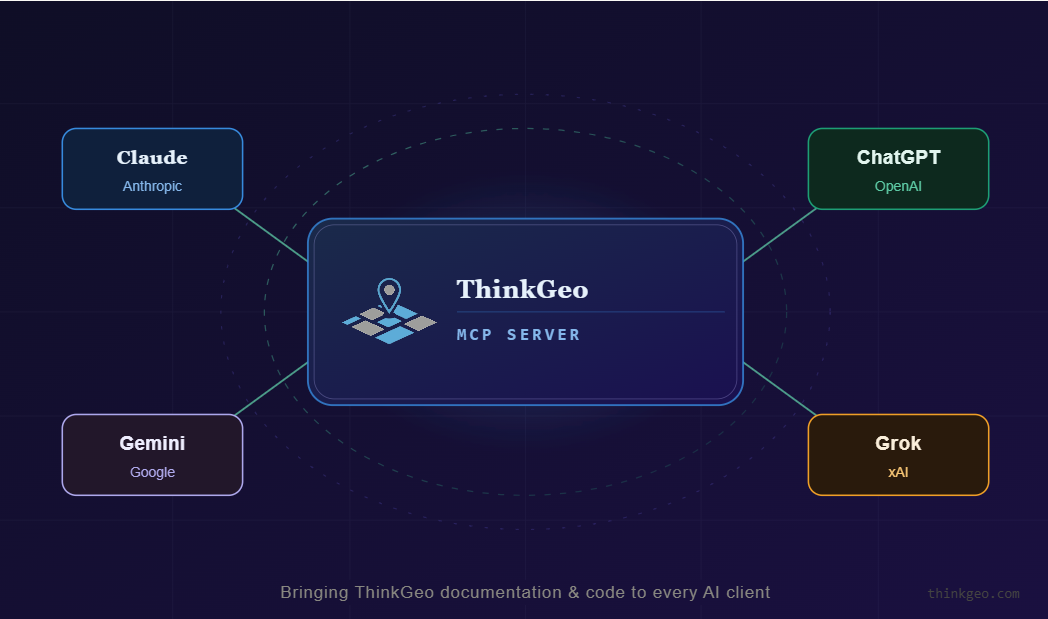
Connecting an AI assistant to the ThinkGeo MCP Server is simple. The server is publicly available and does not require authentication. To get started, simply configure your AI client to reference the ThinkGeo MCP endpoint:
https://ai.thinkgeo.com/mcp
If you’re unsure how to add a new MCP connection, just ask your AI client and it should give you up-to-date instructions. If you still need help connecting, full instructions on connecting specific AI clients or agents can be found below:
https://docs.thinkgeo.com/products/misc/mcp-server/
Once it’s connected, the AI assistant can discover and use the tools exposed by the ThinkGeo MCP Server.
How Do I Use The New MCP Server?
Once connected, you can ask your AI assistant natural language questions about ThinkGeo APIs and expect answers grounded in real documentation, community posts and code. Some examples:
"Show me how to add a ShapeFileFeatureLayer to a WPF map."
"How do I style features using ClassBreakStyle in WinForms?"
"What vector-based endpoints does ThinkGeo GIS Server support?"
"How do I add routing to a .NET MAUI app using ThinkGeo Cloud?"
Or, use Claude Code or Codex directly in your project and ask it to write new code or fix bugs.
“Add the us_states.shp to my project and reproject it from CRS 4326 to 3857. Also, use a class break for styling based on the population column styling each state a shade of blue based on population.”
“Why is my current map not showing the layer I just added to the map?”
“Make the hospitals layer editable where a user can click on the hospital, move it and then click a ‘save location’ button to save the new hospital location to the existing datasource.”
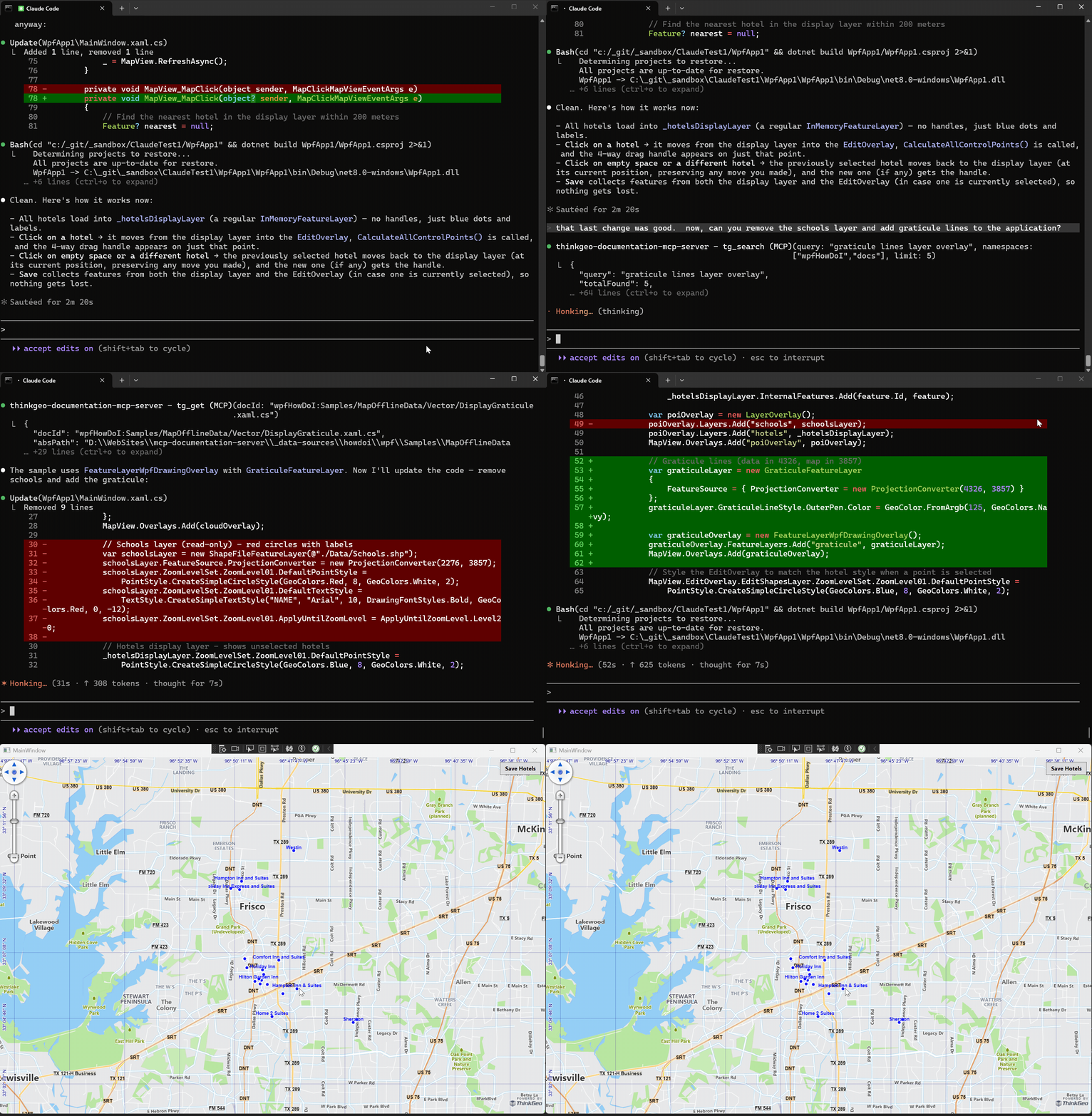
Claude Code with the help of the new ThinkGeo MCP Server directly adding new functionality to a WPF map.
Connect With Us
We hope you found today’s post useful. If you have questions or topics you'd like us to cover in future posts, we’d love to hear from you! Email us at sales@thinkgeo.com or schedule a meeting to talk in person. We always enjoy connecting with our customers, learning how you’re using ThinkGeo, and exploring new ways to improve our products.
About ThinkGeo

We are a GIS software company founded in 2004 and located in Frisco, TX. Our clients are in more than 40 industries including agriculture, energy, transportation, government, engineering, IT, and defense.
We pride ourselves on our excellent service and transparency. ThinkGeo offers a variety of products and services to meet almost any GIS application need. We can even help you develop your next project - anywhere from a few hours of consulting to outsourcing an entire project. To learn more, email us at sales@thinkgeo.com, or call us direct at 1-214-449-0330.
