
Unlock Your Enterprise Data With GIS Server
Today’s enterprise systems often store geospatial data directly inside relational databases such as PostgreSQL/PostGIS and SQL Server. These platforms excel at storage, indexing, and querying, but applications still need a clean way to deliver that data to applications and external systems.
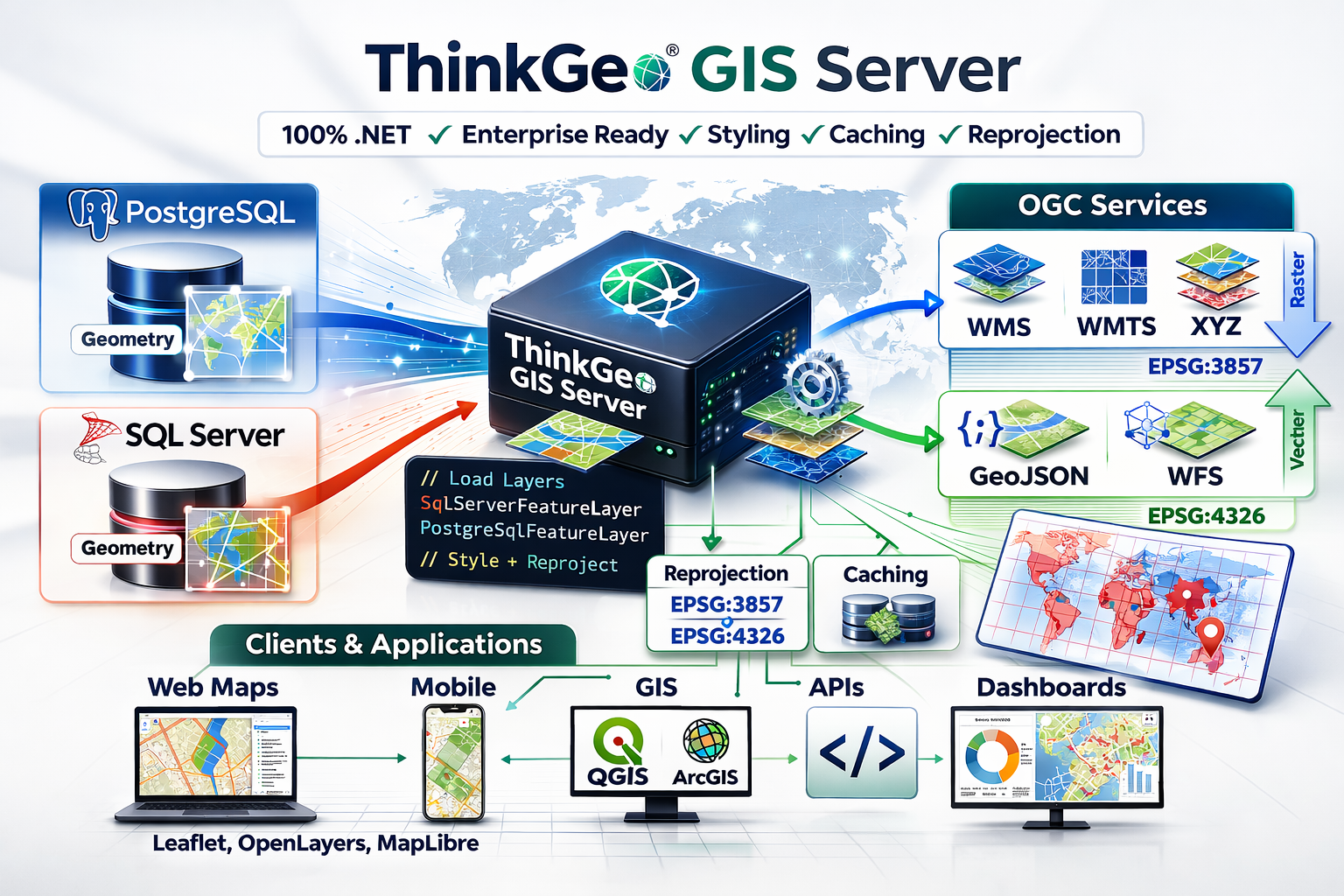
ThinkGeo GIS Server is a lightweight, developer-centric GIS engine built on a 100% .NET codebase. It connects directly to your enterprise databases and publishes your spatial data using standard geospatial protocols.
From a SQL geometry column, the GIS Server can easily generate OGC-compliant WMS, WMTS, XYZ GeoJSON and WFS endpoints that can easily be consumed by any client. Raster endpoints can easily be styled using any of the ThinkGeo styles that you’re already familiar with.
Tip
Check out the GIS Server HowDoI samples here. Just clone the repo and run the solution in Visual Studio.
Code Walkthrough
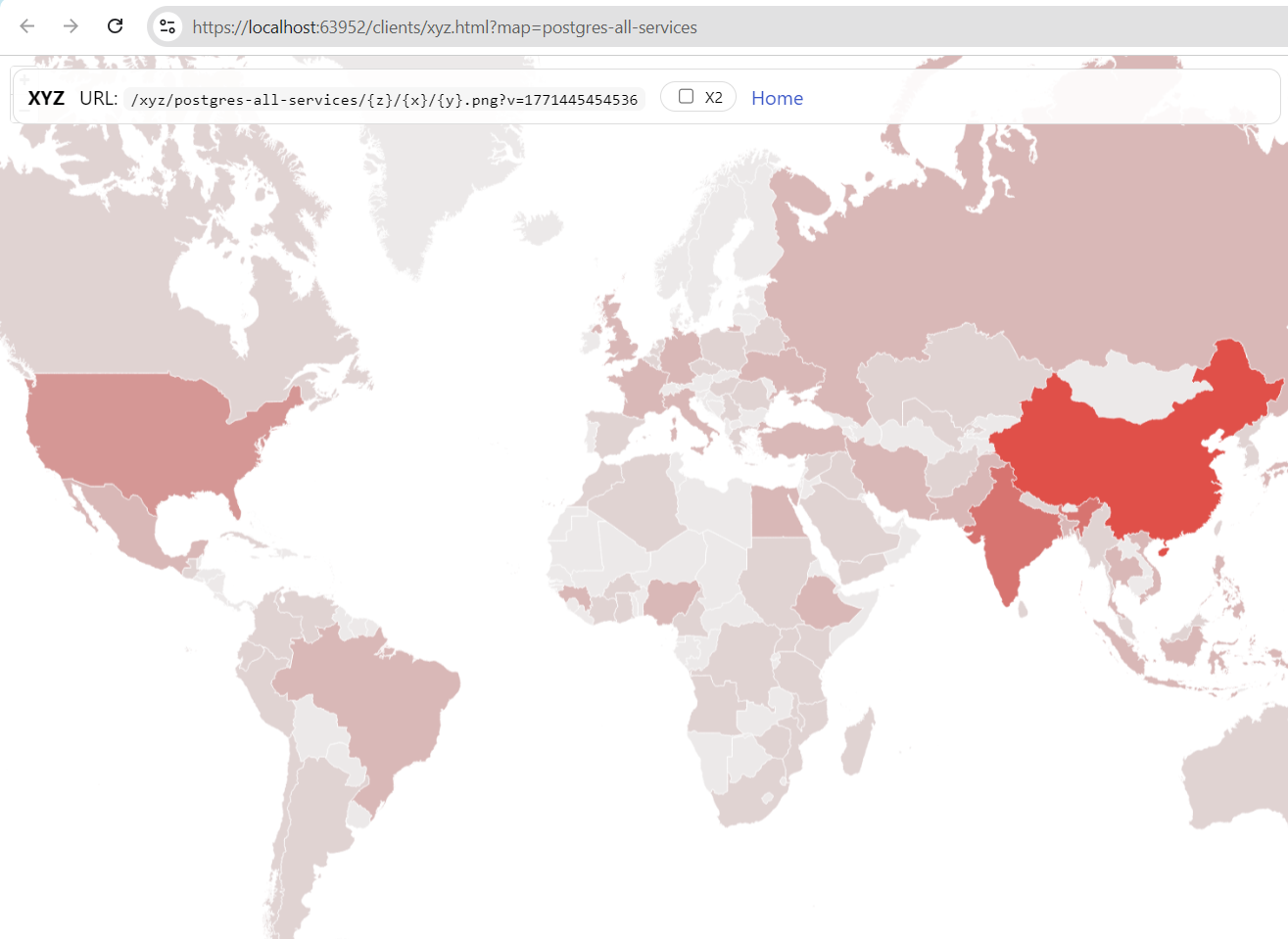
A simple class break style applied to the Countries table using the ‘pop_cntry’ column. Styling can be applied to any raster service. Vector services are typically styled on the client side.
The sample below was taken from the GIS Server HowDoI Samples. We encourage you to clone the repository and experiment with your own data. The code below uses the PostgreSqlFeatureLayer to load data from a Postgres geometry column, but the code for Sql Server is identical except that you’ll want to use the SqlServerFeatureLayer instead.
With any GIS Server project, the first step is to create a new class that inherits from the ThinkGeo.GisServer.IWebServerModule interface and declare a few constants for the service title and description which will be used later in the sample:
// Registers all web services using a postgresql table that renders raster endpoints in EPSG:3857 via a
The next step is to implement the Register method. This is the most important method and allows you to load your data sources, style the data (for raster outputs) and specify which output formats your service will support. The GIS Server uses the ThinkGeo.Core library which will allow you to reuse your custom styling and data source codebase from other ThinkGeo projects.
In the code below, you can see how the PostgreSqlFeatureLayer is used to load data from the countries. Just pass the connection string in the constructor. Note: the data table needs to have one of it's columns defined as a geometry data type. A VectorLayerDefinition and RasterLayerDefinition are used to configure the layers with the appropriate data sources, projection converters and styling (for raster outputs). In this sample, a simple ClassBreakStyle is applied to each country based on the ‘pop_cntry’ column in the countries table.
    public void Register(ThinkGeoWebServerOptions options)
    {
        ArgumentNullException.ThrowIfNull(options);
        var contentRootPath = SampleRegistration.GetContentRootPath();

        // set up our Vector Layers that will be used for WFS and GeoJSON.
        var vectorLayers = new[]
        {
            new VectorLayerDefinition
            {
                Name = "countries",
                Title = "Countries",
                CreateFeatureSource = () => new PostgreSqlFeatureSource("User ID=ThinkGeoTest;Password=ThinkGeoTestPassword;Host=demodb.thinkgeo.com;Port=5432;Database=postgres;Pooling=true;", "countries", "gid", 4326)
            }
        };

        // set up and style the raster layers which will be used in the XYZ, WMS and WMTS endpoints.
        // note:  the raster layers are styled on the server and any ThinkGeo styling can be applied here.
        var rasterLayers = new[]
        {
            new RasterLayerDefinition
            {
                Name = "countries",
                Title = "Countries",
                CreateLayer = () =>
                {
                    var layer = new PostgreSqlFeatureLayer("User ID=ThinkGeoTest;Password=ThinkGeoTestPassword;Host=demodb.thinkgeo.com;Port=5432;Database=postgres;Pooling=true;", "countries", "gid", 4326)
                    {
                        FeatureSource =
                            {
                                ProjectionConverter = new ProjectionConverter(4326, 3857)
                            }
                    };
                    // Create the ClassBreakStyle based on the pop_cntry population column
                    var populationStyle = new ClassBreakStyle("pop_cntry");

                    var classBreakIntervals = new double[] { 0, 10000000, 50000000, 200000000, 500000000, 1000000000 };
                    var colors = GeoColor.GetColorsInHueFamily(GeoColors.Red, classBreakIntervals.Length).Reverse().ToList();

                    // Create ClassBreaks for each of the classBreakIntervals
                    for (var i = 0; i < classBreakIntervals.Length; i++)
                    {
                        // Create the classBreak using one of the intervals and colors defined above
                        var classBreak = new ClassBreak(classBreakIntervals[i], AreaStyle.CreateSimpleAreaStyle(new GeoColor(192, colors[i]), GeoColors.White));

                        // Add the classBreak to the populationStyle ClassBreaks collection
                        populationStyle.ClassBreaks.Add(classBreak);
                    }

                    // Add and apply the ClassBreakStyle to the housingUnitsLayer
                    layer.ZoomLevelSet.ZoomLevel01.CustomStyles.Add(populationStyle);
                    layer.ZoomLevelSet.ZoomLevel01.ApplyUntilZoomLevel = ApplyUntilZoomLevel.Level20;


                    return layer;
                }            }
        };
The last step is to simply define your output formats and assign the layers to the outputs - that’s it!
        // Set up our Outputs in all the Vector and Raster formats you want the service to support.
        var xyzMap = new XyzMapOptions
        {
            Name = Id,
            Title = Title,
            Abstract = Description,
            Crs = "EPSG:3857",
            MapUnit = GeographyUnit.Meter,
            FullExtent = MaxExtents.SphericalMercator,
            TileMatrixSetId = "GoogleMapsCompatible",
            BackgroundColor = GeoColors.White,
            RasterLayers = rasterLayers
        };

        var wmtsMap = new WmtsMapOptions
        {
            Name = xyzMap.Name,
            Title = xyzMap.Title,
            Abstract = xyzMap.Abstract,
            Crs = xyzMap.Crs,
            MapUnit = xyzMap.MapUnit,
            FullExtent = xyzMap.FullExtent,
            TileMatrixSetId = xyzMap.TileMatrixSetId,
            BackgroundColor = GeoColors.White,
            RasterLayers = rasterLayers
        };

        var wmsMap = new WmsMapOptions
        {
            Name = xyzMap.Name,
            Title = xyzMap.Title,
            Abstract = xyzMap.Abstract,
            Crs = xyzMap.Crs,
            MapUnit = xyzMap.MapUnit,
            FullExtent = xyzMap.FullExtent,
            BackgroundColor = GeoColors.White,
            RasterLayers = rasterLayers
        };

        var vectorMap = new VectorMapOptions
        {
            Name = xyzMap.Name,
            Title = xyzMap.Title,
            Abstract = xyzMap.Abstract,
            Crs = "EPSG:4326",
            MapUnit = GeographyUnit.DecimalDegree,
            FullExtent = MaxExtents.DecimalDegree,
            VectorLayers = vectorLayers
        };


        options.Xyz.Maps[xyzMap.Name] = xyzMap;
        options.Wmts.Maps[wmtsMap.Name] = wmtsMap;
        options.Wms.Maps[wmsMap.Name] = wmsMap;
        options.Wfs.Maps[vectorMap.Name] = vectorMap;
        options.GeoJson.Maps[vectorMap.Name] = vectorMap;

        // No sample-specific service options are needed here because this sample uses
        // the default GoogleMapsCompatible matrix set and global service settings.
    }
Connect With Us
We hope you found today’s post useful. If you have questions or topics you'd like us to cover in future posts, we’d love to hear from you! Email us at sales@thinkgeo.com or schedule a meeting to talk in person. We always enjoy connecting with our customers, learning how you’re using ThinkGeo, and exploring new ways to improve our products.
About ThinkGeo

We are a GIS software company founded in 2004 and located in Frisco, TX. Our clients are in more than 40 industries including agriculture, energy, transportation, government, engineering, IT, and defense.
We pride ourselves on our excellent service and transparency. ThinkGeo offers a variety of products and services to meet almost any GIS application need. We can even help you develop your next project - anywhere from a few hours of consulting to outsourcing an entire project. To learn more, email us at sales@thinkgeo.com, or call us direct at 1-214-449-0330.
